Kalyani Ai Video Editing – Friends, a video editing app is currently going viral on social media, featuring a very creative approach. It depicts you sitting on a street, then looking at your mobile phone, lost in memories, and where you were sitting, a field of flowers appears. You can easily do this editing yourself with the help of an eye. I’m going to learn it in today’s article. If you follow this article, you’ll be told the entire process. So, friends, if you want to create this viral eye video editing app, with a realistic result, then learn the process. It’s completely free.
Details Of Kalyani Ai Video Editing
As mentioned earlier, this video is completely created with the help of AI tools. The editing style is unique and gives a magical cinematic feel. In the video, a boy is sitting on a road when he receives a message on his phone. As he looks at the message, a beautiful 3D love message appears beside him, showing that it was sent by his crush. Happy after reading the message, the boy lies down on the road. Within seconds, the road transforms into a colorful field of flowers, while he remains lying there. Rose petals begin floating around him, creating a dreamy and romantic scene. This entire sequence is generated using AI, and in the following sections, I’ll explain how you can create it yourself.
Editing Process Of This Video
The process of creating this AI video is very simple and can be completed in two steps. First, record a short video of yourself sitting on a road, just like the example shown in this edit. Then, open the video in any editing app and capture a screenshot of the frame where you’re lying on the road. After that, you’ll use this screenshot to generate an AI image. Once both the original screenshot and the AI-generated image are ready, we’ll use them together to create the final cinematic video. Before generating the video, you first need to create the AI image, which is explained below.
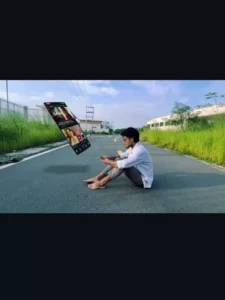
Image Prompt –
Wide-angle shot of a young man with glasses and a white shirt sitting barefoot in the middle of an asphalt road in a suburban area. He drops his smartphone onto the road. As the phone hits the ground, the asphalt begins to crack and crumble beneath him. Colorful wild flowers (cosmos, daisies, pink, yellow, orange) suddenly sprout rapidly out of the cracks, spreading out and completely covering the entire road into a vibrant, lush flower field. Flying flower petals drift gracefully through the air toward the camera under a warm, golden sunset sky with soft, scattered clouds. Cinematic lighting, seamless VFX transformation, 4k resolution, hyper-realistic, 16:9 ratio.
Video Prompt –
If you're creating this manually using video editing and compositing tools (e.g., After Effects, CapCut, or Photoshop + Premiere):
Base Shot (Live Action):
Filmed on a empty paved road during golden hour/sunset.
A man sitting on the ground with a smartphone, tapping/scrolling, then putting or dropping it down.
Screen Overlay Effect (00:01 - 00:05):
Composite a floating, 3D-angled mobile phone screen graphic in front of the subject using 3D perspective tracking/motion tracking.
Add a floating motion/glide effect as if the app interface is levitating and swiping in mid-air.
Asphalt Cracking Effect (00:06 - 00:07):
Apply a ground crack stock overlay or 3D floor fracture animation beneath the seated person, masked precisely around his legs/body.
Flower Growth & Environment Transition (00:08 - 00:16):
Use an AI visual transition (or 3D flower growth assets/particle simulation) emerging from the cracked asphalt.
Seamlessly morph or blend the road texture into a full meadow of multi-colored cosmos flowers.
Add a floating petal particle effect floating upward and toward the camera for depth.
Adjust color grading to enhance warm, golden sunset tones.
How To Create AI Image
Friends, the two most popular AI tools for creating images are Google Gemini and ChatGPT. You can use either one, but here I’ll explain the process using Chatgpt. First, copy the image prompt provided in this article. Then click the Create Over Image button to open the Gemini website and sign in with your account. Paste the copied prompt into the prompt box. After that, click the plus (+) icon and upload the screenshot you captured earlier. Finally, click the Generate button and wait for a few moments. Gemini will create a realistic AI image based on your screenshot. Save the generated image because you’ll need it in the next step while creating the video.
How To Generate Your Video
Once your AI image is ready, it’s time to generate the final video using Flow AI. First, copy the video prompt provided in this article and click the Generate Video button to open the Flow AI website. Sign in with your account and create a New Project.From the dashboard, choose the Frame to Video option. Paste the copied video prompt into the prompt box. Then upload both images in the correct order—first the original screenshot and then the AI-generated image from Gemini. After uploading both images, click the Generate button and wait a few moments. Flow AI will process everything and create your cinematic AI video, which you can then preview and save.
Conclusion
Friends, this is how you can easily create your own Ishq Mubarak AI Video Editing without any advanced editing skills. By following the steps shared in this article, you can generate a beautiful cinematic AI video in just a few minutes. If you want to explore more trending AI video editing tutorials, visit our website and check the AI Editing category. We regularly share new prompts and creative AI editing ideas. If you found this tutorial helpful, don’t forget to share it with your friends.