Weird Bug Effect Ai Video Editing – Friends, you must have surely come across a viral AI video on your social media feeds recently. This video—which features a specific style of eye editing—can be easily created with the help of AI. Moreover, this particular editing style is garnering a lot of popularity and appreciation on social media platforms. You have likely observed how the pupils transition from white back to their normal state, making the entire video appear incredibly realistic. Friends, if you too wish to generate such an AI video, I have outlined the complete editing process in this article; simply follow the steps detailed here to create your own version.
Details Of Weird Bug Effect Ai Video Editing
Friends, first let’s dive into the details of this edit to understand exactly what modifications have been applied. In this video, footage focusing on an eye is played; however, it is far from ordinary. The opening sequence features a close-up of the eye, revealing that the pupil—typically black—is completely white. This signifies that the eye is abnormal. Subsequently, an insect is seen crawling across the face before burrowing itself deep inside the eye. The following clip shows the eye opening—much like a natural blink—but now, the black pupil has taken on the color of the insect that entered it, which happens to be red. Consequently, the pupil appears as a blend of red and black. This entire sequence has been created using AI, resulting in a highly realistic visual effect. We will create this video with the help of an AI tool; you simply need to take a close-up photograph of your eye, and we will then use that image to generate the video.
How To Create Ai Image
So, friends, the very first thing you need to do is take a selfie of your eyes. We are going to use this selfie to generate our video; however, before that, we first need to generate a specific image. To do this, start by copying the image prompt provided in this article. Then, click the “Create Your Image” button to navigate to the Google Gemini website. Once there, you can generate your image: simply paste the copied prompt into the input field, add the selfie of your eyes that you took earlier, and proceed to generate the image. The AI will then generate a unique image for you in which your pupils will be missing, your eyes will appear completely white, and a small red insect will be visible on your face. We will use this very image to generate our video. I will explain the process for that in the next paragraph.
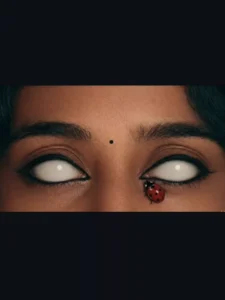
Image Prompt :-
Ultra realistic close-up portrait of a woman's face, focus on eyes, completely white glowing eyes without pupils, smooth skin texture, cinematic lighting, soft shadows, a small red ladybug sitting near the lower eyelid, high detail, 8K resolution, dramatic mood, dark background, sharp focus, professional photography style
Note: Some CapCut templates may not open in certain regions due to the app’s own restrictions. If the template button doesn’t respond, please try again later or open it directly from the official CapCut app. This external link opens the original CapCut template in a new tab. We are not affiliated with CapCut; all rights belong to their respective owners, and we only provide links for user convenience.
Video Prompt :-
A close-up cinematic shot of a woman's face with glowing white eyes, slight slow motion movement, soft blinking effect, realistic skin texture, a red ladybug slowly moving near the eye, dramatic lighting, dark cinematic background, high detail, smooth camera zoom in, 4K quality, realistic animation
How To Generate Your Video
Friends, using Google Flow AI is very easy. If you haven’t learned how yet, I’ll explain it to you step by step in this paragraph. If you follow these steps, you can easily generate a video using your image and the provided prompt.
- First, you need to copy the prompt given on this website.
- Then, click on the “Generate Your Video” button to go to the Google Flow website, and once there, sign in.
- Next, click on “New Project,” then in the dashboard, click on the “Text to Video” option,
- and then on the “Frame to Video” option.
- Add both image, and then paste the copied prompt into the dashboard.
- Finally, click on the “Generate” button and wait a few moments.
- It will then generate the video. The type of video it generates depends on the prompt you enter.
Conclusion
So friends, in this way, you can perform video editing with absolute ease. I have provided you with both types of prompts right here—you now have access to both image prompts and video prompts. By utilizing both of them and following the steps outlined above, you can complete your video editing. I am confident that you will encounter no difficulties while performing this edit and will be able to easily create your own videos. If you enjoyed this article, please be sure to share it. And feel free to leave your feedback in the comments section. You can visit this website for more such trending video editing tutorials.