Trending Princess Ai Video Editing – So friends, you must have surely come across that “Princess” video editing trend—the one where you simply spin around in front of the camera, turn your back, and then, through a seamless transition effect, the clip changes to reveal you dressed as a princess. Friends, creating this type of video is incredibly easy. In this article, I am going to provide you with a complete tutorial on how to perform this edit. If you, too, wish to try your hand at this trending video editing style, simply read through this article. I can guarantee that once you have read this guide, you will encounter absolutely no difficulties and will be able to edit your own video with ease. So, let’s dive in and learn exactly how to master this editing technique!
Details Of Trending Princess Ai Video Editing
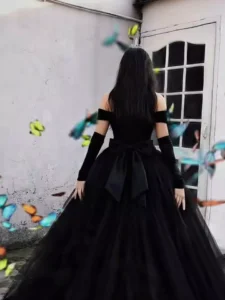
First, let’s explore the details of this video editing. In this editing, we see a normal video, in which a girl appears in front of the camera, dressed in casual attire. She turns around and turns back. Just as she’s about to move forward, the video clip changes with a transition effect, revealing the girl in a princess dress, still facing backward. Friends, this video also uses compressed and zoom effects. A golden glow filter is also used, which you’ll need to use manually in an editing application. I’m explaining the editing process in the following paragraph.
Editing Process – Image Generation
To create this video, we need to follow a two-step process: first, we must generate an AI image for the “princess” visual, and then, using that very image, we will create the video. So, start by recording a video of yourself spinning around; then, take a screenshot from the final moments of that video to serve as the basis for generating the AI image. Now, copy the provided image prompt from this website and use either ChatGPT or Google Gemini to generate the AI image. Alternatively, you can click the “Create Your Image” button—this will redirect you to Gemini’s website. Once there, paste the prompt, upload the screenshot you took earlier, and generate your princess-themed image using Gemini. Finally, to proceed with creating the video using this AI-generated image, please continue reading the paragraphs that follow.
Note: Some CapCut templates may not open in certain regions due to the app’s own restrictions. If the template button doesn’t respond, please try again later or open it directly from the official CapCut app. This external link opens the original CapCut template in a new tab. We are not affiliated with CapCut; all rights belong to their respective owners, and we only provide links for user convenience.
Image Prompt-
Use the uploaded black princess ball gown dress as the clothing reference.
Replace the clothing of the person in the uploaded photo with the same elegant black royal princess gown.
Keep the same person, same face, same body shape, same pose and same hairstyle exactly as the original photo.
The dress should be a large royal ball gown with a wide flowing skirt, detailed fabric texture, soft folds and cinematic elegance.
Make the clothing fit naturally to the body with realistic fabric physics.
Keep the background unchanged. Ultra realistic photography style, natural lighting, cinematic look, sharp focus, high detail, 8K quality
Video Prompt –
Ultra-realistic cinematic shot of a beautiful princess wearing a long elegant black royal gown, seen from behind. The princess slowly begins walking forward in a graceful slow-motion movement. Her long black hair gently sways with the motion while the large flowing gown softly moves and drags across the ground with natural fabric physics.
The princess walks like a royal queen with calm, elegant posture. Her arms move slightly and naturally while walking. The long black dress fabric waves subtly with each step, creating soft cinematic motion. The ribbon bow on the back of the dress moves slightly with the breeze.
Environment: Outdoor courtyard with soft daylight, white wall and vintage door behind her. Natural lighting with soft shadows.
Camera: Cinematic rear tracking shot following the princess from behind. Slow camera movement. Shallow depth of field.
Motion: Natural human walking motion, slow motion elegance, realistic dress physics, hair moving gently with air. Style: Ultra-realistic cinematic look, smooth slow motion, high detail, 4K HDR, vertical 9:16, natural movement, no text, no watermark.
How To Generate Your Video
Friends, using Grok AI is very easy. If you haven’t learned how yet, I’ll explain it to you step by step in this paragraph. If you follow these steps, you can easily generate a video using your image and the provided prompt.
- First, open Grok AI on your device. You can access it through the platform where Grok is available. Once the interface loads, you will see the main chat or creation panel where you can start creating content.
- On the main screen, look for the “From Tool” option. This feature allows you to create different types of AI content such as images, videos, or other media.
- After opening the tool section, choose the video generation option. This tool is designed to convert your written prompt into a short AI-generated video.
- Now you will see a prompt input box. This is where you need to describe the video you want to create. Paste the prompt here.
- After entering the prompt and adjusting settings, click the Generate button.
- Grok will start processing your request and convert your prompt into a video. This may take a few seconds depending on the complexity of the prompt.
- Once the generation process is complete, the video will appear on your screen.
- You Can Save This.
How To Create Final Video
Now, friends, to prepare our final video, we will need a video editing application—such as VN Editor or CapCut. You are free to use whichever one you prefer. Let me walk you through the process using CapCut: First, open the CapCut application and add your original video clip; immediately following that, add the AI-generated video. Next, you need to apply a transition effect at the exact point where the two videos join together. After that, you will want to apply some effects to your “attitude-style” video clip. To do this, select the video and apply various effects—such as a “Shake” effect or a “Golden Glow” effect—to give it a more unique look. You can use any effects you personally like to complete the entire video editing process. This is the simple method for performing this type of editing.