Trending Police Ai Video Editing – Friends, you must have surely come across an AI video on Instagram featuring a “police officer” style AI edit. This editing style is both quite funny and remarkably realistic. Friends, such AI videos are currently going viral, and you too can create similar funny AI videos. Today, I am providing you with a tutorial on how to perform this specific video edit. You can create this edit yourself—featuring you alongside an AI-generated police officer—resulting in a video that looks completely authentic. We can generate such a video with the help of a simple prompt; the process is incredibly easy. If you read through this article, you will find the necessary video prompt, along with a detailed explanation of the entire process.
Details Of Trending Police Ai Video Editing
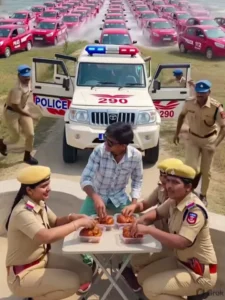
In this editing tutorial, we will observe a video playing—one that has been generated using AI and bears no relation to real life. In it, you will see a young man sitting down—a figure who could very well be you. Suddenly, while still seated, the young man looks behind him, only to see a massive convoy of police vehicles approaching from the rear—a procession comprising what appears to be thousands of cars. From this convoy, several police officers step out of a white vehicle, carrying a table and some food items in their hands. They quickly approach the young man, set up the table, place the food upon it, and all begin to eat and converse with great enjoyment. This entire scene looks completely realistic, and you can generate it yourself with the help of a simple prompt—let me show you how.
What You Need To Do This Ai Editing
Look, to perform this editing, you don’t need anything particularly specialized; you will simply require a photograph and a video prompt. You will need to provide your own photograph, while I am providing the video prompt right here within this article. Now that we have both items, the question arises: where do we use them? You can create this video with the help of an AI tool. Tools such as Grok AI and Flow AI are some of the leading platforms you can utilize to generate AI-powered videos. I will guide you through the process of generating a video using Flow AI, as it is quite user-friendly and consistently delivers impressive results. So, friends, the video prompt has been provided below the image, and the instructions on how to use it will be detailed in the following paragraphs.
Note: Some CapCut templates may not open in certain regions due to the app’s own restrictions. If the template button doesn’t respond, please try again later or open it directly from the official CapCut app. This external link opens the original CapCut template in a new tab. We are not affiliated with CapCut; all rights belong to their respective owners, and we only provide links for user convenience.
A cinematic wide-angle shot of a rural riverside road. A white police jeep with flashing red and blue lights is parked in the foreground, both doors open. A young man wearing sunglasses sits confidently in front of the jeep. Two female police officers in uniform are placing plates full of crispy fried chicken on a small folding table in front of him. In the background, hundreds of identical red cars are driving fast through shallow water, creating dramatic splashes and dust, inmoving in perfect symmetry toward the camera. The atmosphere is slightly hazy with sunlight reflecting off the water. Camera slowly zooms in on the man as he reacts excitedly, while the police officers continue serving food. Add slow-motion shots of water splashes, cars moving in sync, and food being placed on the table. Style: cinematic, ultra realistic, 4K, dramatic lighting, slow motion, depth of field, action + comedy vibe.
How To generate Your Video
So friends, to generate such AI videos, we need to follow a few simple steps. Which I’ll explain in this article. First, click the “Generate Video” button. This will take us directly to the Flow AI website. Log in with your email address. Then, click the “Create Project” option. We’ll create a project. Click the “Text” option on the dashboard below, then select “Frame” and “Video.” Then, click the “+” icon to add an image and type some text in the box I’ve provided below the image on my site. Copy this prompt and paste it there. Then, click the “Generate” button. After a few moments, our video will be ready, and it will look realistic. This is how you’ll create your video.
Conclusion
So friends, in this way, you can perform your AI video editing using these simple steps. This is a highly viral trend, and you should definitely take advantage of it. I have outlined the entire process for you; now, go ahead and follow it. If you wish to create more unique and trending AI video edits like this, you can visit this website to explore further. If you enjoyed this article, please be sure to share it.