Sky Fall Ai Video Editing – So friends, an AI video is currently going viral where it looks like we’re floating in the air in the sky and coming down, giving the impression that we’re in heaven. And this type of video is becoming very popular. It’s been created using an AI tool, and the process is quite simple. Many people messaged me asking for a tutorial on this AI video editing. So today, in this article, I’ll give you a tutorial on this video editing technique, which will allow you to create your own similar video. We’ll create it easily in just 3 steps, and the entire process will be completely free. I’ll explain each step to you one by one. Once you understand them, you can follow the steps and create your own viral AI video.
Details Of Sky Fall Ai Video Editing
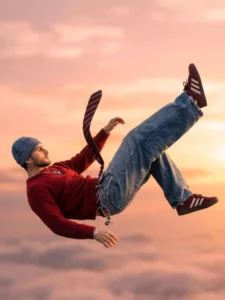
So first, let’s talk about this editing technique. In this video, we see a person falling downwards through the air as if they are effortlessly floating in the sky. It looks like they are lost in thought with their eyes closed, or perhaps we ourselves are dreaming that they have arrived in heaven. That’s the kind of video it is, and in the background, there’s a glowing sky with airplanes flying by. Slow motion is also applied to the video. This kind of video looks realistic, but we can create it from a single selfie. For this, we first need to create an image, and then the video will be generated from that image. So I’ll explain the process; stay tuned to this article.
Editing Process :-
The process of editing this video using AI is very simple; you just need to understand it carefully once. We will do this editing in two steps. The first stage will be to create an AI image from a real image of ourselves, depicting us falling from the sky. This image will be created using two different prompts. We will create both images separately using their respective prompts, and then we will use these two AI-generated images along with the prompts to create the video. So, I am explaining the image and video creation process to you; read it carefully, and then you can create the video.
How To Create Image
For this AI editing, we need to create an image where we are in the sky and it looks like we are falling. To do this, copy the first prompt given below the image and open the Gemini app, or you can go to the Gemini website using the “Create Your Image” button. Paste the prompt there and click on the plus icon to add a selfie or an image of your face. Now click on the send button to generate the image. Gemini will create our AI image where we are in the sky and appear to be falling. This is the first image. Now we need to repeat the same process by copying the second image prompt. So, copy the second prompt and then use the same process to create both images with Gemini. Then we will create a video from these two images, and I will explain that process in the next paragraph.
Note: Some CapCut templates may not open in certain regions due to the app’s own restrictions. If the template button doesn’t respond, please try again later or open it directly from the official CapCut app. This external link opens the original CapCut template in a new tab. We are not affiliated with CapCut; all rights belong to their respective owners, and we only provide links for user convenience.
Image Prompt 01 :-
A cinematic surreal photo of a single young man floating in the sky, full body visible, wearing a black hoodie, black pants, sneakers and a cap. The person is slightly tilted as if gently falling or levitating in mid-air. Minimal composition with vast open sky. Soft golden sunset clouds background, warm pastel yellow and orange tones. Dreamy, calm, aesthetic mood. High contrast silhouette style, realistic human proportions, ultra-realistic, cinematic lighting, depth of field, 4K quality, vertical frame, modern Instagram aesthetic.
Image Prompt 02 :-
A cinematic surreal photo of a young man floating in the sky as if gravity has stopped, full body visible, wearing a black hoodie, black pants, sneakers and a cap, arms and legs relaxed, dramatic slow-motion pose. Two modern fighter jets flying nearby in the background, one above and one below, creating a powerful action scene. Golden sunset sky with warm orange and yellow tones, soft clouds, strong backlighting, realistic shadows, ultra-realistic, high detail, cinematic lighting, shallow depth of field, 8K quality, photorealistic, dramatic composition, movie still, epic atmosphere. 100% face match.
Video Prompt :-
Camera tracks and pans downward with a falling human figure, starting tiny high in the sky and growing larger as they descend through clouds, slowing into a brief levitation as fighter jets streak past behind them at high speed.
How To generate Your Video
So friends, to generate such AI videos, we need to follow a few simple steps. Which I’ll explain in this article. First, click the “Generate Video” button. This will take us directly to the Flow AI website. Log in with your email address. Then, click the “Create Project” option. We’ll create a project. Click the “Text” option on the dashboard below, then select “Frame” and “Video.” Then, click the “+” icon to add an image and type some text in the box I’ve provided below the image on my site. Copy this prompt and paste it there. Then, click the “Generate” button. After a few moments, our video will be ready, and it will look realistic. This is how you’ll create your video.
Conclusion
So, with this method, you can easily generate your video in just two steps, creating an AI-generated video of yourself falling from the sky. It looks completely realistic and creative. This trend is new right now, so create it as soon as possible and share it on social media. This will help your video go viral. I’ve explained the entire genuine process to you. If you follow these steps, your video will be created 100% and will look realistic.