Radha Krishna Ai Video Editing – Friends, you must have noticed on social media that AI-generated videos are becoming incredibly viral these days. People are utilizing AI tools to create them, leveraging their creativity to produce AI-edited videos in a wide variety of unique styles. In particular, one specific video is gaining significant traction, featuring a truly unique editing technique powered by AI. It begins by playing a clip of a real-life couple, which is then seamlessly followed by an AI-generated sequence depicting them in the guise of deities. Friends, this video editing style is so unique and creative that it has gone viral—and you, too, can create a similar AI video of your own! You can feature yourself alongside your partner, with the subsequent clip transitioning into an AI-generated sequence. So, friends, the process for creating this video is quite simple; let me show you how.
Details of Radha Krishna Ai Video Editing
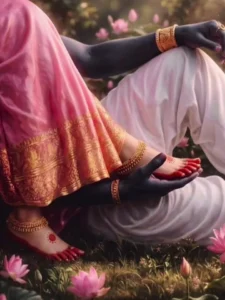
First, let’s get a comprehensive overview of this AI video editing technique. In this editing process, we will be working with a base video featuring a real-life couple, into which you will be replacing your own footage. The video begins by showing a rustic village setting with a traditional mud house; a young woman is seated on the threshold outside the home. Suddenly, a young man approaches, kneels down before her, gently takes one of her feet into his hands, and gazes at it intently. At that very moment, the clip transitions to an AI-generated sequence. This scene evokes a deeply divine aura—reminiscent of Lord Krishna holding Radha Rani’s feet in his hands—and is set against a backdrop of a beautiful floral garden, much like a scene from an animated movie. Friends, you can create this very scene for yourselves as well. To do so, you simply need to follow two specific steps; let me walk you through the entire process.
Editing Process – Image Generation
Friends, to perform this specific video edit, we need to follow a few steps—steps that are quite simple. First, we must generate an image for this purpose—specifically, an AI-generated image based on our real-life footage. To do this, your initial task is to record a video of yourself sitting with your partner and holding their feet in your hands. Next, take a screenshot from this video—specifically from the final moments of the clip. We will then use this screenshot to generate our AI image. To assist you with this, you will find an image prompt included within this article; simply copy this prompt and use Google Gemini to generate your image. To proceed with the image generation, click on the “Create Yours” button to visit the Google Gemini website. Once there, paste the prompt, upload your screenshot, and generate the AI image. After the image has been generated, we will use it to create an AI video; you can read about the video generation process in the next paragraph.
Note: Some CapCut templates may not open in certain regions due to the app’s own restrictions. If the template button doesn’t respond, please try again later or open it directly from the official CapCut app. This external link opens the original CapCut template in a new tab. We are not affiliated with CapCut; all rights belong to their respective owners, and we only provide links for user convenience.
Image Prompt –
Create an image Ultra-realistic 4K divine scene of Lord Krishna sitting peacefully in a lush garden filled with blooming pink lotus flowers. Focus on lower body composition: dark blue skin tone hands gently holding Radha’s delicate feet placed on his lap. Radha wearing elegant pink silk saree with rich golden zari border, soft fabric folds, traditional anklets and alta on feet. Krishna dressed in white dhoti with golden ornaments and bracelets. Warm golden hour lighting with soft sun rays filtering through trees, dreamy bokeh background, cinematic depth of field. Surrounding grass and lotus petals detailed, spiritual and romantic atmosphere, volumetric light, HDR, highly detailed textures, photorealistic skin and fabric, serene mood, Indian mythological aesthetic, masterpiece, ultra-detailed, 8k resolution
Video Prompt –
Ultra-realistic cinematic video of a divine scene inspired by Radha Krishna in a lotus garden. Focus on lower body composition. Krishna’s dark blue hands gently lifting and supporting Radha’s delicate feet and slowly placing them onto his lap. Subtle natural movement: fingers softly adjusting position, slight toe movement, anklets gently swaying. Radha’s pink silk saree with golden border flowing slightly with soft breeze. Surrounding lotus flowers and grass moving gently. Warm golden sunlight rays passing through trees, soft glowing particles in air. Camera slow cinematic push-in shot with shallow depth of field. Emotional, peaceful, romantic spiritual vibe. Highly detailed textures, realistic skin movement, smooth animation, 4K quality, HDR lighting, volumetric light.
🎥 Motion Details (Important Add-ons)
Isko prompt ke end me add kar sakte ho aur better result milega:
slow motion, 24fps, smooth hand movement, natural physics, gentle breeze, micro movements, cinematic camera movement, no jitter, no fast motion
How To generate Ai Video
So friends, to generate such AI videos, we need to follow a few simple steps. Which I’ll explain in this article. First, click the “Generate Video” button. This will take us directly to the Flow AI website. Log in with your email address. Then, click the “Create Project” option. We’ll create a project. Click the “Text” option on the dashboard below, then select “Frame” and “Video.” Then, click the “+” icon to add an image and type some text in the box I’ve provided below the image on my site. Copy this prompt and paste it there. Then, click the “Generate” button. After a few moments, our video will be ready, and it will look realistic. This is how you’ll create your video.
How To Create Final Video
Friends, in this way, you can generate AI images and transform them into an AI video. The generated AI images will look exactly like what you saw in the viral video. Now, regarding how to perform the final editing: simply open any video editing application—such as VN Editor or CapCut—and first add your original video clip, followed by the AI video footage. Here, you can apply various effects and transitions of your choice, such as slow motion, shake effects, and so on. Once you have done this, your final video edit will be complete. We hope you enjoy this editing style and appreciate the way we explained the process. If you wish to create more trending AI videos like this, you can find a variety of video editing prompts on this website; feel free to visit the site and check them out.