Jay Bhim GYM Ai Video Editing – Friends, video editing made with the help of AI is becoming quite viral on social media these days. You must have noticed that there is a trend of gym videos in which people pose while working out, behind them is a large statue of a god or someone they consider their idol. The most viral videos were those of Hanuman Ji, in which he is in the background, resting his hand on our heads. But now, another Jai trend has emerged, which is essentially an ad. People are making videos using images of Dr. Bhimrao Ambedkar, in which he is seen holding a book. So, friends, this trend is new, this Bhimrao Ambedkar thing, so if you want to edit it for yourself, read this article; the entire process will be explained.
Details Of Jay Bhim GYM Ai Video Editing
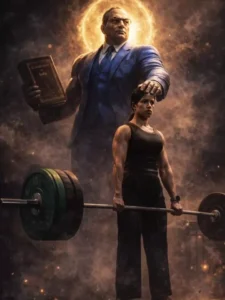
Speaking of editing, you must have seen a guy working out at the gym, doing some heavy weightlifting. After an AI transition effect, the video transforms into an AI image, showing him lifting weights in his hands, and behind him is Dr. Bhimrao Ambedkar, a large statue-like image of him, holding a book in one hand and blessing him with the other. The background is cinematic, and the image looks quite impressive. Bhimrao’s admirers and followers are enjoying watching this image, and many want to create their own AI image videos with Bhimrao himself. Therefore, I’m explaining the process. We’ll create it using Chat GPT or Gemini.
How do we prepare the clip for this editing?
First, we’ll record a video of you working out in the gym and take a good screenshot from that video. So, record a good video of yourself weightlifting in your gym attire, so your body looks muscular. Then, play the video and take a screenshot of the last part of the video where you lift the weights. Now, we’ll convert this image into an AI image. For this, create an AI image in Gemini or Chatgpt. I’m providing a prompt below the image. You can use the prompt to create an AI image, then add it to your video and complete the editing.
Note: Some CapCut templates may not open in certain regions due to the app’s own restrictions. If the template button doesn’t respond, please try again later or open it directly from the official CapCut app. This external link opens the original CapCut template in a new tab. We are not affiliated with CapCut; all rights belong to their respective owners, and we only provide links for user convenience.
Ultra-realistic cinematic scene of a powerful Indian male athlete (use my uploaded photo as face reference) performing a heavy deadlift in a dark gym. Massive mythical Dr. B R Ambedkar divine warrior standing behind him, symbolizing inner strength, not touching the lifter Dr. BR Ambedkar is gigantic, muscular, ancient god-like, wearing he's iconic blue suit pant having constitution book in 1 hand, divine aura. The athlete wears dark gym clothes, lifting a loaded Olympic barbell, veins popping, and intense focus Low-angle shot, dramatic composition Cinematic lighting, strong rim light, volumetric smoke, dust, fog, sparks Dark moody background, epic fantasy realism, hyper-detailed muscles, sharp textures. No text, no logos, no watermark.
Photorealistic. 8K. ultra-detailed cinematic depth of field, epic contrast and keep one hand of Dr. BR Ambedkar ji on my head.
How To Create Image
Look, to create the image, you first have to prepare a real image. I just told you how you can take a screenshot from your own video. Now copy the image prompt given on this website and click on the Create Your Image button. You will come to the chatgpt website, here you have to paste the prompt and add your image from which you took the screenshot using the plus icon. Then click on the Generate button and wait for a few moments, your image will be ready. If you want to create the image using Gemini, you can do it with that too, we will get the same result from both.
Video Editing Process
Friends, you’ve generated the image, but you can learn how to do viral video editing by reading this paragraph. So, add your video clip to the CapCut application. Now, go to the last part of the video where you took the screenshot. Split and delete the clip before that. Then, using the “Add Clip” option, add the AI image we just generated. After adding it, click on the “Effects” option and select “Secure Effect.” Set the effect’s opacity to 10 or 15 percent. After doing this, our video will be ready, and it will be exactly like the trend on social media.