Flashback Effect Gujarati Capcut Template – Hello friends! In today’s article, I am going to share with you a viral “Flashback” video editing template. If you read this article carefully, you will learn how to perform this editing in a very simple and easy manner. Specifically, in this post, I will guide you through the process of editing a video set to a Gujarati song; this utilizes a “Flashback” style—an editing trend you have likely already come across on social media platforms. Friends, people are really loving this particular video editing style, and you can apply it to your own video clips. The result will feature your personal footage in the foreground, accompanied by a nostalgic “flashback” video playing in the background, along with the addition of various effects and animations. Best of all, your video will be edited automatically! So, please read through this article attentively.
Details Of Flashback Effect Gujarati Capcut Template
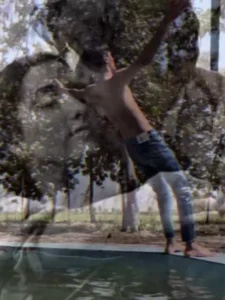
As I mentioned earlier, this is a Gujarati-style “flashback” editing project; let me explain in detail the specific editing effects utilized in this template. Friends, in the preview of this template, you will observe that the video begins with a blur effect, displaying a poignant video clip of a boy. In this clip, he strikes a sorrowful pose—spreading his arms wide to both sides—before his video freezes. At that moment, a “flashback” video sequence begins playing in the background. This sequence consists of an album of photographs featuring you and your partner, compiled into a video and played back at an accelerated speed; the clip serves as a nostalgic reminder of your partner. Initially, this flashback video appears quite small in size, but it gradually expands until it fills the entire video frame. Additionally, various effects and transitions have been interspersed throughout the sequence.
How To Prepare Video Clip For This Editing
Friends, to create this flashback-style video edit, we will need a specific video clip. So, please get that ready first. If you already have a suitable video available, feel free to use it; otherwise, you will need to record one—and I’ll guide you through exactly how to do that. First, you need to fix your camera in one spot, or mount it on a tripod. Next, step in front of the camera, but position yourself so that your back is facing it. Stand facing away from the camera and record a “sad” clip. You could record yourself looking sorrowful while spreading your arms wide, or perhaps record a video of yourself walking down on stairs while stumbling slightly. Clips of this nature will fit perfectly into this template.

Note: Some CapCut templates may not open in certain regions due to the app’s own restrictions. If the template button doesn’t respond, please try again later or open it directly from the official CapCut app. This external link opens the original CapCut template in a new tab. We are not affiliated with CapCut; all rights belong to their respective owners, and we only provide links for user convenience.

How To Use Flashback Effect Gujarati Capcut Template
Friends, I have provided you with all the details regarding this template, and I have also included a link to it above. Now, you need to use this template to edit your video within the CapCut application. So, if you already know how to open CapCut and utilize the template, that’s great; if not, don’t worry—I will provide you with a step-by-step guide in this paragraph to ensure you face no difficulties while using the template.
- First, here is what you need to do: click on the “Check Template” button located beneath the image.
- This button will redirect you to the template. It will open directly within the CapCut application.
- However, if you do not have the CapCut app installed, please download and install the official version first before attempting to use the template.
- Upon accessing template, you will see a preview of the template within the application, along with an “Use Template” option located at the bottom.
- Click on this option; this will open your phone’s gallery.
- From where you can select and add your video clips.
- Add as many clips as required by the template, and then click the “Next” button.
- The template will then automatically begin editing your video, and within moments, your finished video will be ready.
- You can save it by clicking the “Export” button located at the top of the screen.
Conclusion
In this way, you can easily create a video edit featuring a “sad flashback” theme using this template. You won’t encounter any difficulties; you will be able to edit your video completely automatically and with absolute ease. Friends, I have now outlined all the necessary steps for you; you can simply follow them to complete your editing. If you are looking for more creative templates like this, you can visit this website or search directly within CapCut, where you will find a wide variety of options. Please note that I have merely shared the link to the template; I am not affiliated with CapCut in any way. You are free to use the template at your own discretion.