Bike Rider Ai Video Editing – Friends, today in this article I’m going to teach you how to edit viral AI videos. You must have seen this AI video in which a boy is riding a bike and carrying a buffalo. It looks quite funny and was made with AI. So if you also want to try this kind of funny AI video editing, I’m going to tell you the process of editing this AI video in this article. You can make your own AI video by reading it.
Details Of Bike Rider Ai Video Editing
Look, as I just told you, this is an AI video, and it looks quite realistic and funny. So, friends, we’ll use an AI tool to do this editing. First, you should learn about it. In this video, you’ll see a boy sitting on a bike with a buffalo standing next to him. The next moment, the boy starts riding, and the buffalo jumps on his bike, and the boy sits on it and starts riding. Friends, this scene looks quite funny. And you can make a video of yourself instead of the boy. You’ll only need one photo to make the video. We’ll use the AI tool to generate the video from that photo.
Customization In this Editing
Look, you can customize this editing tool to create funny videos in different ways. I’ll tell you where to do the customization. You can do any customization for this editing in the prompt. If you want to replace a bike with something else, like a car, bus, or cart, just type the name of the thing you want to add to the video in place of the bike in the prompt. Now, if you want to replace a buffalo with another animal, you can add its name instead of “buffalo.” Whatever you want to change, you just need to replace the details entered in the prompt with your own details. Then, you’ll be able to create a video as you wish. And we’ll generate this video using the Flow AI tool. I’ll explain the process in the next paragraph.
Update – Look, today I’m updating this article with a new edit. Friends, I’m giving you a prompt for a new bike ride edit below. You can see it in this first image. I showed you another bike edit a few days ago, but now a new video is going viral in which we’re seen doing stunts while riding a bike.
Note: Some CapCut templates may not open in certain regions due to the app’s own restrictions. If the template button doesn’t respond, please try again later or open it directly from the official CapCut app. This external link opens the original CapCut template in a new tab. We are not affiliated with CapCut; all rights belong to their respective owners, and we only provide links for user convenience.
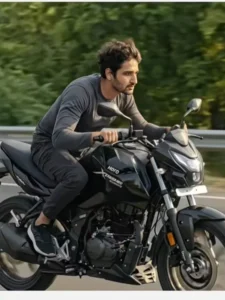
Image Prompt:-
Use the uploaded image face_ref.jpg as the exact face reference. Photorealistic, high-resolution vertical portrait (tall) of a male rider on a black naked-sport motorcycle, shot from a low front-left 3/4 angle. Recreate the exact framing, camera angle and motion: rider centered slightly right of center, bike moving left→right, vertical crop. Golden-hour late-afternoon lighting — warm rim light from camera-left, soft fill from front to keep facial detail, subtle specular highlights on bike metal and helmetless head. Maintain shallow depth of field: subject (face, upper body, bike) tack-sharp, background heavily streaked horizontal motion blur. Apply radial/spin blur to both wheels (more to rear wheel) and directional motion streaks to road and guardrail. Add realistic dust/debris and small black gravel particles being thrown by the rear wheel and faint tire smoke. Clothing: olive-green padded jacket, black slim jeans, brown boots, black riding gloves — natural creases and realistic cloth shading. Bike details: modern black naked/sport bike (no brand logos), visible engine, LED headlight on, front indicator reflector visible, metal guardrail on roadside blurred. Environment: multilane paved highway with guardrail, blurred trees and warm sky in background. Color grading: natural, warm-golden tones, contrasty but realistic skin tones. Output: photorealistic, no face deformation, no blur on face — match facial angle/expression from face_ref.jpg, match skin tone and lighting on face (apply subtle relight to match scene). Final image should look like a single cohesive photograph — natural motion, realistic physics (correct wheel spin, rider posture leaning forward), no compositing artifacts. Aspect ratio: tall/vertical suitable for phone wallpaper / Instagram Reels cover.
Video Prompt:-
“motorcycle was moving on the road, then suddenly a big divider comes in front of the bike and then the bike jumps over the divider, it was like a bike stunt, after taking the bike in the air bike naturally fall on the road ( natural physics applied). There is no need to make any change in the image and background of the video. Animated this realistic video and added sharpness and 4k quality video, make the motion, fall, jump everything feels real( realistic physics appiled).”
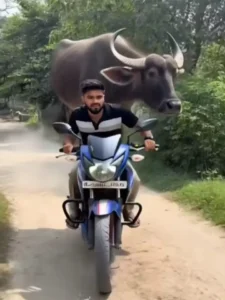
Use the uploaded photo of me as the main character.
Create a realistic cinematic video where I am riding a blue sports bike on a narrow rural village road during daytime. The camera starts with a front tracking shot, slightly low angle, moving backward smoothly as I ride forward.
Suddenly, a large realistic black buffalo runs behind me in slow motion, dust rising from the road. After a few seconds, the buffalo jumps and sits behind me on the bike in a funny but realistic way, balancing naturally.
Add natural village background with green trees, soft sunlight, and slight wind movement. Make it look ultra-realistic, high detail, 4K quality, cinematic lighting, depth of field, motion blur on wheels, dramatic but funny mood.
Keep my face accurate and consistent with the uploaded image. Maintain realistic body proportions and smooth animation.
Duration: 8–10 seconds.
Style: Hyper-realistic, cinematic, dynamic camera movement.
How To Generate Your Video
Friends, using Google Flow AI is very easy. If you haven’t learned how yet, I’ll explain it to you step by step in this paragraph. If you follow these steps, you can easily generate a video using your image and the provided prompt.
- First, you need to copy the prompt given on this website.
- Then, click on the “Generate Your Video” button to go to the Google Flow website, and once there, sign in.
- Next, click on “New Project,” then in the dashboard, click on the “Text to Video” option,
- and then on the “Frame to Video” option.
- Add an image, and then paste the copied prompt into the dashboard.
- Finally, click on the “Generate” button and wait a few moments.
- It will then generate the video. The type of video it generates depends on the prompt you enter.
CONCLUSION
Friends, you can now easily create this funny buffalo AI video editing app from a single photo using prompts. I’ve explained all the processes in detail, so you can follow them. And if you’re looking for more trending video editing tutorials like this, you can visit our website, where we offer the latest training video editing tutorials.