Attitude Trend Capcut Template – Friends, right now, a specific style of video editing is going viral on Instagram, and people are using this technique to make their own videos go viral. If you, too, wish to create this viral video—in which a standard clip plays initially alongside a romantic song, only to suddenly freeze on a filtered image accompanied by an “attitude” track—then you’ve come to the right place. Friends, videos edited in this style are garnering hundreds of thousands of views; if you want to create one yourself, simply follow the instructions in this article. I will teach you how to edit your video using a specific template, allowing you to automatically generate your own professionally edited clip. So, take a moment to understand the information provided in this article, and then go ahead and create your own viral video!
Details Of Attitude Trend Capcut Template
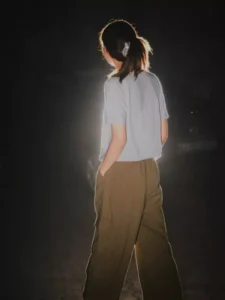
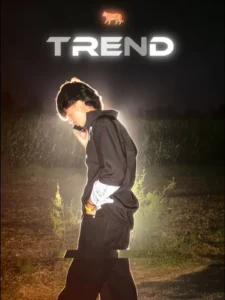
As I mentioned earlier, the editing in this template follows a specific structure: the video begins with a standard romantic song, featuring no special effects—save for a subtle blur effect applied right at the start. Then, the clip transitions abruptly, switching to an “attitude” track by Sidhu Moose Wala. The second clip features an image created by taking a screenshot from the initial footage, editing it with the help of AI, and then incorporating it into the video.
For this second segment, you will need to edit the image using the “Instagram Lo-Fi Dusk” filter before inserting it. Consequently, this second clip showcases both a glitch effect and a vibration effect. This style effectively juxtaposes two distinct moods, demonstrating our ability to shift from a “normal” demeanor to an “attitude-filled” persona. Given that this is currently a trending style across social media platforms, you should definitely give this editing technique a try!
What You Need To Do This Editing?
Friends, to perform this specific edit, you will need to use a particular type of video clip. Specifically, you will require one video clip, from which you must capture a screenshot to use in the edit. I recommend using a video clip featuring an “attitude-style” walking sequence, where you are seen striking a static pose within the footage. Next, take a screenshot of the final frame of that video clip and apply the “Lo-Fi Task” filter—available on Instagram—to transform the image. Once that is done, proceed to use the template: insert your original video clip into the first slot, and add the filtered screenshot into the second slot. Simply by doing this, your video will be ready! In the next paragraph, I will guide you through the process of using the template.
Update – Friends, in this article, I am sharing another new trending template that is currently going viral on social media; the editing style featured in this template involves Urdu lyrics. If you want to create your own viral video, you can check out the button for this new template provided in the article—you will find it right below the first image.

How To Use Attitude Trend Capcut Template
Friends, in this article, I have provided you with comprehensive information regarding this template. Now, let me clearly explain how you can actually use it. You have two methods available for utilizing this template; you may choose whichever one you prefer or find easiest. One option is to open the CapCut application, navigate to the “Templates” section, search for this specific template by name, locate it, and then proceed to use it. However, you may occasionally encounter an issue where you are unable to properly find the exact template you are looking for—simply because there are already so many other templates available within the app. There is a simple solution for this as well, which I will explain to you step-by-step.
- First, click on the “Check Template” button that we provide within this article.
- Template will automatically open the template directly within the CapCut application.
- You will see a preview video of the template displayed on the screen; below it, you will find an option to “Use” the template.
- Click on that option, and then add your video clips—ensure you add the exact number of clips required by the template.
- Once done, click “Next” and wait for a few moments.
- The template will automatically handle the video editing process for you, and you can save your video.
Conclucion
So friends, in this way, you can very easily edit your own trending viral video. The “attitude” segment within this style is currently going quite viral; therefore, if you edit your video in the same manner, the chances of your video going viral will increase significantly. I hope you enjoyed this article; please be sure to share your feedback with us so that we can continue teaching you such unique editing techniques.