Lord Krishna CapCut Template – Videos featuring Lord Krishna—like the one currently trending on Instagram—are going incredibly viral, and I’m going to show you exactly how you can create this type of viral content yourself. The concept involves a visual transition: the video begins with a close-up shot of your eyes, which then seamlessly transforms into the Krishna-themed sequence. While creating this kind of video isn’t a difficult task in today’s digital landscape, I will explain the process in two simple steps. First, you can utilize a CapCut template; alternatively, you can use a specific code. It is entirely up to you to decide which method you prefer for editing. The editing process is straightforward using either option, so simply choose the method that appeals to you most and easily create your own video.
Deatils – Lord Krishna CapCut Template
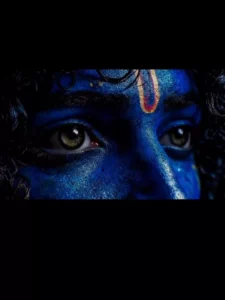
In this you will get to see some such things like first of all you get to see a normal video in which it runs for just a few seconds. Then after that, while changing, your eyes get converted into the eyes of Lord Krishna and that too in 4K with a smooth slow motion, those eyes blink just once and it runs for that long. The video and this is going to be a total of 10 to 12 seconds and along with this length, there is also a unique content, hence people are liking it more, so I will tell you how you can make such videos automatically without any manual editing?
How To record Your Video ?
First, let’s understand the video recording process. To begin with, you need to determine exactly which part of yourself you need to record. Specifically, you need to record a video of your eyes. To do this, start by switching your phone to landscape mode—that is, rotate it horizontally. Next, simply zoom in on your eyes, or alternatively, bring the phone’s camera lens close to your face. Frame the shot so that your eyes fill the screen appropriately;
you can refer to preview videos made by others—or check the sample provided within the template I share—to get an idea of the correct framing. Record your video accordingly, ensuring it runs for at least 5 to 6 seconds. Crucially, towards the very end of the recording, you must blink—that is, close your eyes—because the subsequent clip will begin with the action of opening your eyes. Please pay close attention to this specific detail.
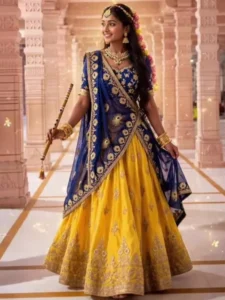
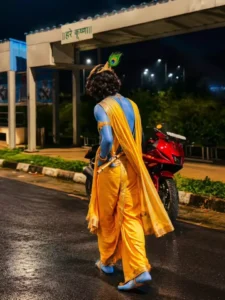
Update – Friends, in today’s article I am updating you with another new trading template with Lord Krishna’s video editing, with the help of which you can edit your video in a new style and a lot of creative editing has been done in it, so you can check it in this earlier template.
Image Prompt –
Use my uploaded photo as the exact base/reference image. Preserve the original photograph and composition as much as possible. Transform ONLY the person’s appearance into a highly realistic Shri Krishna-inspired traditional look. IMPORTANT:– The person must remain the exact same person.– Preserve the original face, facial features, identity, expression, hairstyle, hair texture, body shape, height, proportions, pose, hands, fingers, legs, camera angle, framing and perspective.– Preserve the original photographic realism, lighting, shadows and depth of field.– DO NOT modify the background in any way. Keep the original road, trees, buildings, signs, sky, wires, vehicles, objects and scenery exactly unchanged.– Do not add or remove anything from the environment.ONLY change the person’s appearance:1. Change the visible skin/body complexion to a natural, realistic deep Krishna-inspired blue complexion while retaining realistic skin pores, texture and natural highlights.2. Replace the existing outfit with an elegant traditional Krishna costume:– rich golden-yellow dhoti– realistic fabric folds and texture– royal-blue decorative drape– intricate traditional golden embroidered borders3. Add authentic, elegant Krishna-style traditional jewelry:– layered gold necklaces– armlets– bracelets– waist ornament– traditional earrings– subtle additional golden ornaments4. Add a beautiful traditional Krishna mukut/crown with detailed gold craftsmanship and one prominent natural peacock feather.5. Add a traditional wooden flute naturally in the person’s hand/alongside the body ONLY if it can be done without changing the original pose, hands or fingers.CRITICAL FOOTWEAR REQUIREMENT:– ABSOLUTELY NO FOOTWEAR.– Remove/replace the original shoes completely.– The person must be completely barefoot.– Both feet and all toes should look natural, anatomically correct and realistic.– Do not add sandals, shoes, slippers, socks, anklets that look like footwear, or any other footwear.– Preserve the original walking pose and leg position while making the feet naturally barefoot.STYLE:Photorealistic real-life photograph, not painting, not illustration, not CGI, not cartoon, not fantasy render.Realistic Indian traditional styling, authentic fabric texture, realistic gold jewelry reflections, natural skin texture, physically accurate lighting and shadows, seamless clothing transformation, highly detailed, natural photographic finish.MOST IMPORTANT:Do not alter the original background or composition. Do not change the person’s identity or pose. Only transform the person’s skin color, clothing and traditional Krishna accessories, with completely bare feet.
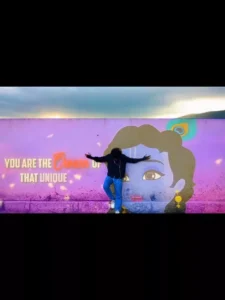

Update – We have included a VN code in this article so that you can create a viral Lord Krishna-themed edit using it. You can use the code easily; if you are unfamiliar with the process, we have published several articles on our website that will teach you how to use it.
How To Use Lord Krishna CapCut Template
Now, to begin creating your video using a CapCut template—which I have already provided to you—the very first step is to click on “Check Template” here. As soon as you click on it, you will be directed straight into the CapCut app, where you can view the complete video sequence. Once you have previewed it, proceed to click on “Check Template” again. From there, select your own video clip featuring your eyes.
As I mentioned earlier, regarding your eye video, you must ensure that the ending portion captures you blinking—specifically, you should trim the clip to end at the exact moment your eyes close. This is crucial because the subsequent segment—featuring Lord Krishna—will depict eyes opening, creating a truly stunning visual effect. All you need to do now is add your video clip, click “Next,” and the final preview of your video will be ready for you to review and export.
Create Video Using Vn Code
And finally, if you wish to edit using our VN code, the process is quite simple. First, you will need to scan the code. Let me explain how to do that. To begin, open the VN Editor and click on the ‘Scanner’ option; you will find the scanning feature located there. Navigate to your gallery, select the code image, and as soon as you do, the entire project file will become available to you. Download the file, and you will then see an option to ‘Use’ it. Click on that option, and simply select your own video—just as you would with a CapCut template—then click ‘Next.’ The app will then generate a final preview of your video. Once you are satisfied that it looks perfect, simply hit ‘Export,’ and you’re all done!