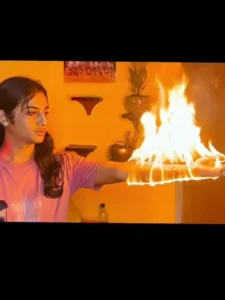
Fire Effect Ai Video Editing – Friends, a highly trending video editing style is currently going viral on social media, in which people are creating videos that appear as though they are setting their hands on fire. Rest assured, this video editing effect is not real; it is a digitally edited illusion. You, too, can perform this edit without any difficulty, and your video will be processed and edited automatically. In this guide, I will teach you how to replicate this viral video editing style using ai. This trend is proving to be quite popular among many people, and creating this AI video is remarkably simple. If you, too, wish to create this viral AI video edit, please read this article. In it, I will provide a detailed explanation of exactly how you can incorporate this AI video featuring burning hand video clips. The process is incredibly straightforward, as we will be generating the video using an AI tool; simply read through the article to understand the steps involved.
Details OF Fire Effect Ai Video Editing
First, let me provide you with full details regarding this video editing. As you can see, the editing in this particular video has been executed in a truly unique manner, specifically tailored for creating “sad” videos—you will observe a distinct melancholic aesthetic in the editing style here. The video features a video clip of a girl, which you can easily replace with your own footage; she is merely a model whose clips were utilized for the purpose of demonstrating this video editing style. The video depicts the girl looking away with a sorrowful expression; she then extends her hands, which suddenly burst into flames. This sequence possesses a highly cinematic quality, further enhanced by the use of various cinematic effects and filters within the video. Friends, please note that this editing is not—in any way—realistic; it was created solely through the application of special effects and bears absolutely no resemblance to real-life events. This particular editing style is currently gaining significant popularity among users, largely because of its highly creative and imaginative nature.
Editing Process Of This Video Editing
Friends, to generate this AI video, we need to follow two steps: first, we must generate an AI image, and subsequently, we will use that image to generate the video. To begin, you need to record a short video of yourself in which you extends your hands. Next, take a screenshot of the final frame of that video. Then, copy the image prompt provided in this article, paste it into Google, and upload your screenshot. This will allow you to generate an image; the AI will create a realistic-looking image of you in the style of Lord Krishna. Now that we are ready to generate the video, I will explain the process in the following paragraph.
Video Prompt –
A young man standing against a plain wall, wearing a red t-shirt, looking at his outstretched hand.
A small realistic flame slowly ignites on his fingertips, flickering naturally with detailed fire physics, warm glow reflecting on his skin.
The fire gradually spreads from fingers to palm in slow motion, with subtle smoke and ember particles floating in the air.
The lighting becomes warmer and dynamic as the flame grows, casting soft shadows on the wall.
The man reacts slightly, watching the fire calmly.
The flames slowly travel up his arm towards the shoulder, with realistic burning texture but not damaging the skin, giving a supernatural effect.
Cinematic look, shallow depth of field, 4K, ultra realistic fire VFX, dramatic lighting, slow motion, volumetric smoke, glowing embers, high detail, smooth camera slight movement, no zoom.
How To generate Your Video
So friends, to generate such AI videos, we need to follow a few simple steps. Which I’ll explain in this article. First, click the “Generate Video” button. This will take us directly to the Flow AI website. Log in with your email address. Then, click the “Create Project” option. We’ll create a project. Click the “Text” option on the dashboard below, then select “Frame” and “Video.” Then, click the “+” icon to add an image and type some text in the box I’ve provided below the image on my site. Copy this prompt and paste it there. Then, click the “Generate” button. After a few moments, our video will be ready, and it will look realistic. This is how you’ll create your video.
Final Editing Process
So friends, that is how you can perform this trending AI-style video editing. You have now successfully generated the AI video, but your final video is not yet complete. To finalize the video, open any video editing application; first, add your original clip, and then add the AI-generated video. Next, simply add some transition effects and video effects according to your preferences. Once you have done this, your video will be ready. I hope you have understood the entire process and will now be able to create videos with ease. For more trending AI video editing tutorials like this, you can visit and explore this website.