Ajnabi Hawaayein Ai Video Editing – Nowadays, new AI videos are going viral on social media every day, and creating them is incredibly easy. In this article, I will teach you how to edit a specific type of viral AI video, enabling you to create your very own version. Friends, you have surely come across those videos featuring a horror scene—the ones that start with real footage, which then transitions into a realistic-looking AI-generated sequence. Remarkably, these videos are created using nothing more than a single photograph. So, if you too wish to create your own version of this viral video, simply read on.
Details Of Ajnabi Hawaayein Ai Video Editing
Let me tell you about this video edit—specifically, what kind of editing has been applied here. It begins with a standard, real-life video clip in which a girl places her camera in a fixed position, turns around, and walks away. At that precise moment, the clip transitions into an AI-generated video. This AI sequence depicts the same girl, now clad in a saree, walking through an environment that evokes a nightmarish horror scene—it is raining, and lightning is flashing, much like a scene straight out of a horror movie. Notably, this entire video was created using just a single still photograph. We will be producing this in two distinct stages: first, we will generate the image, and then, using that very image, we will generate the video. I will outline the entire process for you in the following paragraph.
Editing Process Of This Video Editing
To perform this AI video edit, you need to follow a few simple steps. First, you will require a video clip. Record a video similar to the one featured at the beginning of the viral clip—specifically, one where you turn around. Next, take a screenshot from the very end of that video clip—the exact moment where you are in the process of turning around. Now, you need to transform that screenshot into an AI-generated image. To do this, copy the image prompt provided in this article and use Gemini to create the image. Simply paste the prompt into Gemini, upload your screenshot, and generate the image. Within moments, Gemini will produce a horror-themed AI image for you. We will now use this generated image to create the final video; please read the next paragraph for the specific steps on how to do this.
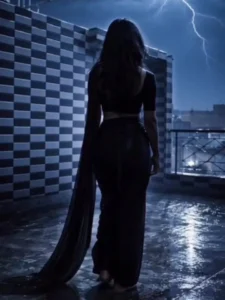
Image Prompt –
Change her dress into black saree sleeveless blouse open hair with dark rainy weather thounderstorm slow rain wind her saree,s fall flow in wind use upload photo type same body structure
Video Prompt –
Create a cinematic slow-motion video of the girl walking forward. Add light rain and soft wind. Her hair and black saree should flow naturally in the wind. Include dark cloudy sky and occasional lightning in the background. Keep realistic motion, smooth animation, and dramatic lighting.
How To generate Your Video
So friends, to generate such AI videos, we need to follow a few simple steps. Which I’ll explain in this article. First, click the “Generate Video” button. This will take us directly to the Flow AI website. Log in with your email address. Then, click the “Create Project” option. We’ll create a project. Click the “Text” option on the dashboard below, then select “Frame” and “Video.” Then, click the “+” icon to add an image and type some text in the box I’ve provided below the image on my site. Copy this prompt and paste it there. Then, click the “Generate” button. After a few moments, our video will be ready, and it will look realistic. This is how you’ll create your video.
Conclusion
Friends, in this way, you will be able to generate your AI video. Now, you need to combine both your AI video and your real video to create a complete video. To do this, open any video editing application; first, add the real video clip, and then add the AI video clip immediately after it. Next, insert some transitions and video effects in between—customizing them to your liking—such as slow motion, shake effects, flashes, etc. Once you have done this, your complete video will be ready. You can then share it anywhere you wish. I hope you have understood the entire process and will now be able to easily edit your very own horror AI video.