God Handshake Ai Video Editing – Friends, you must have surely come across this viral AI video on social media. This is because this style of AI video editing is currently trending—specifically, the effect where Lord Krishna reaches his hands out from a computer screen to read your palm. This is a highly creative video editing technique, and you, too, can generate this AI video yourself. You can easily create this using an AI tool, resulting in a video featuring your own hands interacting with your computer screen, as the deity reaches out to grasp them. To perform this edit, you will need both a specific prompt and an AI tool. I am going to provide you with both the prompt and the tool required for this editing task; simply read through this article, and you will fully understand the entire process.
Details Of God Handshake Ai Video Editing
Let me explain in detail what you are about to see in this AI video. In this clip, we first observe a video playing on a computer screen, which features a wallpaper of Lord Krishna. In this wallpaper, the Lord is depicted holding the Sudarshan Chakra in one hand while extending his other hand forward, towards the screen. At that very moment, the person recording the video brings his own hand in front of the camera and extends it toward the computer screen, as if he were about to shake hands with the Lord. That concludes the recorded footage; immediately following this, we transition to the AI-generated video. We then witness that, as the young man extends his hand, the figure of the Lord—emerging from within the computer wallpaper—reaches out, grasps the young man’s hand in his own, and appears to be bestowing his divine power upon him. At that precise instant, a burst of neon light flashes across the scene, and the video comes to an end. Friends, this entire sequence looks incredibly realistic and creative.
Editing Process Of This Ai Video
Look, to create this AI video, we need to follow two steps. First, you must record a video of yourself; specifically, set a wallpaper of a deity on your computer screen and record yourself extending your hand forward to strike a handshake pose. Now, you need to capture a screenshot from this video. Take the screenshot from the very end of the video you just recorded—specifically, from the moment where both your hand and the computer screen are clearly visible in front of the camera. Subsequently, you will use that screenshot to generate a video with the help of an AI tool. Below, I have provided a video prompt; copy this prompt, then click on the “Generate Video” button to access the AI tool. Once there, you will proceed to generate the video; for detailed instructions on how to do this, please read the following paragraph step-by-step.
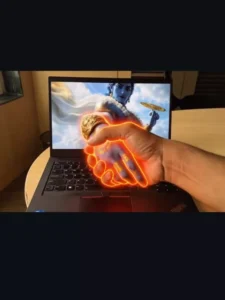
Use the uploaded image as the base reference and keep everything exactly the same: the computer monitor, the character on the screen, the lighting and the real human hand in front of the screen. The scene starts as a still image. After a moment. the character on the computer screen slowly becomes animated and looks toward the human hand in front of the monitor. A subtle digital glow appears on the monitor and the screen surface begins to ripple slightly like liquid glass. The character slowly raises their hand toward the screen from inside the display. The hand begins emerging out of the monitor as if the screen is a soft digital portal. The character's hand moves forward from the screen toward the real human hand.Both hands meet and shake hands in slow motion. At the moment of contact, a subtle glowing pulse spreads from the handshake point. The handshake looks natural and realistic while the character remains partly inside the screen and partly outside.Keep the original character face and design exactly the same as the input image. Cinematic lighting, dramatic shadows, shallow depth of field, smooth camera movement, ultra realistic motion.8-10 second cinematic video photorealistic, smooth animation, emotional cinematic moment.Important do not change the original image composition, only animate the scene
How To Generate Your Video
Friends, using Google Flow AI is very easy. If you haven’t learned how yet, I’ll explain it to you step by step in this paragraph. If you follow these steps, you can easily generate a video using your image and the provided prompt.
- First, you need to copy the prompt given on this website.
- Then, click on the “Generate Your Video” button to go to the Google Flow website, and once there, sign in.
- Next, click on “New Project,” then in the dashboard, click on the “Text to Video” option,
- and then on the “Frame to Video” option.
- Add an image, and then paste the copied prompt into the dashboard.
- Finally, click on the “Generate” button and wait a few moments.
- It will then generate the video. The type of video it generates depends on the prompt you enter.
How To Create Final Video
Now, friends, you have successfully generated an AI video from an image, but we still need to finalize the video. To create the final video, open the original video clip in any video editing application. Next, keep the original video clip up to the exact point where you took the screenshot. Then, insert the AI video immediately after that point. Additionally, if you wish, you can add various effects or animations—such as shake effects, video transitions, and so on. Once you have completed these steps, your final video will be ready, allowing you to easily generate a trending AI video.