Flying Boy Ai Video Editing – Friends, these days, different styles of eye videos are going viral on social media and people are easily creating realistic images from their own images with the help of AI. A new video is going viral right now in which a boy is standing in an open field and then the next moment he starts flying in the air like a superhero. Friends, this video looks absolutely real. So, if you also want to do this video editing from your image, then I am going to tell you the tutorial of this editing in this article. Follow the article and you will get complete information about this eye video editing with the help of which you can make your own video.
Details Of Flying Boy Ai Video Editing
Look, this video is going to be edited with the help of AI. As I told you in the first paragraph, you can make it from an image. So let us first learn about it. Friends, in this it is shown that a boy is standing in an open field, spreading both his hands in the air, then in a moment he flies in the air as if he is flying in the air using some power. And looking at this scene it seems as if someone has actually shot it, but it is not real, it has been created by writing a prompt with the help of AI. Yes, you can do this editing with the help of a prompt and a photo. We are going to make it using an AI tool called Flow AI. I will tell you the process, you read on.
How To Prepare Your Clips For This Editing
Look, to do this editing, we’ll need a proper photo, because only photos will make the perfect video. So, to make this video, first prepare a photo. Use an open field or an empty space on the roof of your house to prepare a photo. While clicking the photo, pose in such a way that you are standing straight, both your hands are raised in the air, and you have your eyes closed, as if you are thinking of some power or mantra in your mind. Prepare such an image, and then we will make a video from that image. So, copy the prompt given in the article, then follow the process and make a video from the image.
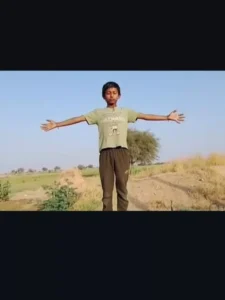
Create a cinematic realistic video from the given image.
The man standing in the center slowly starts levitating vertically into the sky.
464
At first, he stands still with arms slightly open, wind gently moving his clothes.
Then he slowly rises up in a smooth, natural motion as if gravity is disappearing.
Add subtle dust particles lifting from the ground.
Camera starts with a front view medium-wide shot, slowly pushing in.
As he rises higher, smoothly transition to a dynamic back angle shot from behind him, showing his back while he continues flying upward into the sky.
Add cinematic camera movement like a drone shot rising with him.
Background remains realistic with natural daylight.
Add soft sunlight glow and slight lens flare.
Make it dramatic, inspirational and realistic (not cartoonish). Ultra realistic, 4K, high detail, smooth motion, professional cinematic color grading, natural shadows, realistic physics, shallow depth of field, epic atmosphere.

1. Shot 1 (0-2 sec)
Front view - wind effect - slight camera push-in

2. Shot 2 (2-4 sec)
Lift-off start - dust particles - slow motion

3. Shot 3 (4-6 sec)
Smooth transition to back shot drone rising with you

4. Final Shot (6-8 sec)
Wide aerial shot - you flying higher into sky
How To Generate Your Video
Friends, using Google Flow AI is very easy. If you haven’t learned how yet, I’ll explain it to you step by step in this paragraph. If you follow these steps, you can easily generate a video using your image and the provided prompt.
- First, you need to copy the prompt given on this website.
- Then, click on the “Generate Your Video” button to go to the Google Flow website, and once there, sign in.
- Next, click on “New Project,” then in the dashboard, click on the “Text to Video” option,
- and then on the “Frame to Video” option.
- Add an image, and then paste the copied prompt into the dashboard.
- Finally, click on the “Generate” button and wait a few moments.
- It will then generate the video. The type of video it generates depends on the prompt you enter.
Conclusion
In this way, you can create a realistic image from one of your images using AI. This video will be exactly like the ones you’ve seen on social media. The process is also very simple; now you can create any type of AI video using this method. Friends, I hope you understand the process and can now perform this AI video editing without any problems. To learn more trending AI video editing techniques like this, you can visit this website.