Dhurandhar Ai Photo Editing Prompts – So guys, you’ve probably already watched the blockbuster movie, and now it’s time to take advantage of the trend. Dhurandhar AI photos are going viral these days, just like the movie’s videos did. Fans are creating AI images, adding themselves alongside the film’s actors to create realistic pictures. And if you haven’t tried this AI editing yet, you’ll be left behind in the trend. In this article, I’m going to help you by providing some unique and realistic prompts for Dhurandhar AI editing. I’ll also explain how to create these images and provide step-by-step instructions. Just follow the article.
Details Of Dhurandhar Ai Photo Editing Prompts
Talking about this particular editing technique, people are creating AI images similar to the viral images from Ranveer Singh’s movie, and these are becoming very popular and realistic. You can add your own image alongside Ranveer Singh and Akshay Khanna. In some images, it looks like you’re on the movie set getting your picture taken, while in others, you can create an image with Akshay Khanna or in his style, with your own face. It doesn’t take much time to create these; your photo will look just like the before and after images you’ve seen. And we’ll be doing this editing with the help of Google Gemini, so let me explain the rest of the process.
Why This Editing Is Viral?
Friends, this editing is going viral because it’s based on a Bollywood movie poster. Ranveer Singh’s new film, Dhurandhar, is creating a lot of buzz, and people are loving it. They’re especially appreciating the character played by Akshaye Khanna and are creating images in a similar style. Now, creating these images has become easy thanks to AI. We can create professional-looking images in just a few minutes without any editing skills. So, if you’re also a fan of Akshaye Khanna or want to create images in his style, you’ll definitely love this editing. Let me explain step-by-step in the next paragraph how you can create this Dhurandhar AI photo editing from your normal image using Google Gemini.
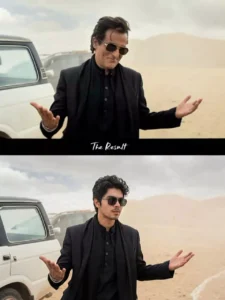
IMAGE PROMPT 1 :-
luxury SUV is parked behind him. The background is dusty with soft cloudy skies and muted beige tones. Cinematic lighting, shallow depth of field, realistic photography, 4K ultra-detailed, moody Bollywood movie scene, dramatic atmosphere, professional color grading.
PROMPT 2 :-
A realistic selfie shot taken by a young man standing next to Bollywood actor Akshaye Khanna in a desert environment. Akshaye Khanna is on the left, looking serious, wearing a black blazer over a black kurta, a black scarf wrapped around his neck, and gold-rimmed aviator sunglasses. He has slightly messy, windblown dark hair. The young man on the right is wearing a grey t-shirt and glasses, smiling at the camera. The background is a behind-the-scenes movie set in a sandy desert, with film crew members, technical equipment, lights, and black SUVs parked in the distance. Bright natural daylight, harsh shadows, 4k resolution, candid smartphone photography style.
Video Prompt :-
“A cinematic slow-motion shot of a stylish man stepping out of a white SUV in a dusty desert location. As the car door opens, the man walks forward confidently with both arms slightly spread, wearing a black outfit and dark sunglasses. Light wind moves his hair while he smiles in a cool, composed way. The background is minimal with soft dust in the air, giving a dramatic movie-style entry. Camera follows him from a low angle, then shifts to a smooth front-tracking shot. Warm cinematic color grading, soft depth of field, high detail, ultra-realistic, hero-entry vibe.”
How To Use Dhurandhar Ai Photo Editing Prompts
Friends, creating images with Google Gemini is very easy. You just need to read these instructions carefully, and then you can easily create any image on your phone. Let me explain. First, copy any prompt, as we will use it to create our own image. Now, open Gemini. You can find it on the Play Store, or you can click on the “Create Your Image” button above to go to the Gemini website. Log in there. Now, paste the prompt into the box. Then, use the “+” icon to add an image that includes your face. Make sure the image only contains your face; if there are multiple faces, Gemini won’t give the correct result. So, add an image of your face. Now, click on the send button. You will have to wait a few moments. Your realistic image will be created, featuring you alongside someone like Ranveer Singh or Akshay Khanna, similar to the amazing AI images that are going viral.
How To Generate Your Video
Friends, to create a video from an image, we first need to know how to use it, because we can’t create a video without knowledge. Therefore, I’ll explain all the steps in this paragraph. Follow them, and your video will be easily edited. First, click on the “Create Your Video” button. You’ll be taken to the Flow AI website. The first thing you need to do is log in. You’ll see a “Project” option. Open it.
In the dashboard below, you’ll see “Text” and “Video” options. Click on “Frame” and “Video.” Here, you’ll find various options. From there, select “Frame” and “Video.” Now, select your image using the “+” icon. We’ll create a drone shot. Then, return to the website, copy the prompt, and use it to edit your image on the Flow Labs website. Click on “Generate” and your video will be ready in a few moments. Save it. In this way you can make a video of your Video With Hanuman Ji, it will look absolutely real.
Conclusion
The final result looks like you were standing right there on the set during their shooting time. You’ll see your own pictures in place of the popular heroes, heroines, or villains. The lighting and background match perfectly, making it look very realistic. That’s why it’s becoming so popular on Instagram. If you also want to create such pictures, you can easily do so by reading this article, because you won’t find anyone explaining it in such a simple way. We have explained it to you in the easiest possible way. We hope you liked this article and will share it.